Providing Liquidity

Atlantis is a fully permissionless modular V4 DEX, allowing any project or protocol to create liquidity pairs and seed liquidity without requiring approval or onboarding. By launching liquidity directly on Atlantis, teams gain the full benefits of our modular architecture including concentrated liquidity, hooks-based customizations, enhanced execution, and deep cross-ecosystem composability on Monad mainnet. Atlantis pools are widely aggregated across the entire ecosystem and integrated with the largest on-chain aggregators, ensuring deep visibility, optimal routing, and maximum trade flow from day one.

This section will guide you through the process of creating a liquidity pair and adding liquidity to your pool, from selecting the token pair to finalizing the position on Atlantis.


Adding Liquidity to V4 Pools

  1. Select V4 in the top slider.

  2. Connect your wallet.

    V4 is now selected, and wallet connected.

  3. Select the pool you wish to add liquidity to, and click on it.

    The pool has now been selected.

  4. Now click on the "Create Position" button.

  5. Choose your preferred strategy, then enter the amount of liquidity you wish to provide before clicking the "Approve" button.

    You are now ready to deploy liquidity and execute the transaction.

  6. Confirm the transaction in your wallet.

    Done! After click "Create Position" and confirming your transaction, you have now deployed liquidity.

  7. You can now view your created positions!

    In this list, you can access all of your current liquidity positions.

  8. Click on the individual position to see its details.

    Here, you can also add further liquidity to the pool, remove liquidity, and collect earned fees.

Creating New Pools

  1. Select V4 in the top slider.

  2. Connect your wallet.

  3. Click on the "Create Pool" button.

    The "Create Pool" button can be found on the top right corner.

  4. Select both assets you wish to add to the liquidity pair.

    If an asset is not listed on Atlantis by default, paste the contract address in manually.

  5. Create Pool, and then proceed to adding liquidity as mentioned in the first guide at the top of this page.


Adding Liquidity to Automated Vaults

  1. Select V4 in the top slider.

  2. Connect your wallet.

  3. Select the Automated Vault you wish to add liquidity to.

    Click on the vault to proceed.

  4. In this step, you can choose between Automatic (Auto-Rebalancing), and Manual Strategies. Automatic:

    On "Automatic", you can directly input the amount of your deposit. Atlantis takes care of the rest.
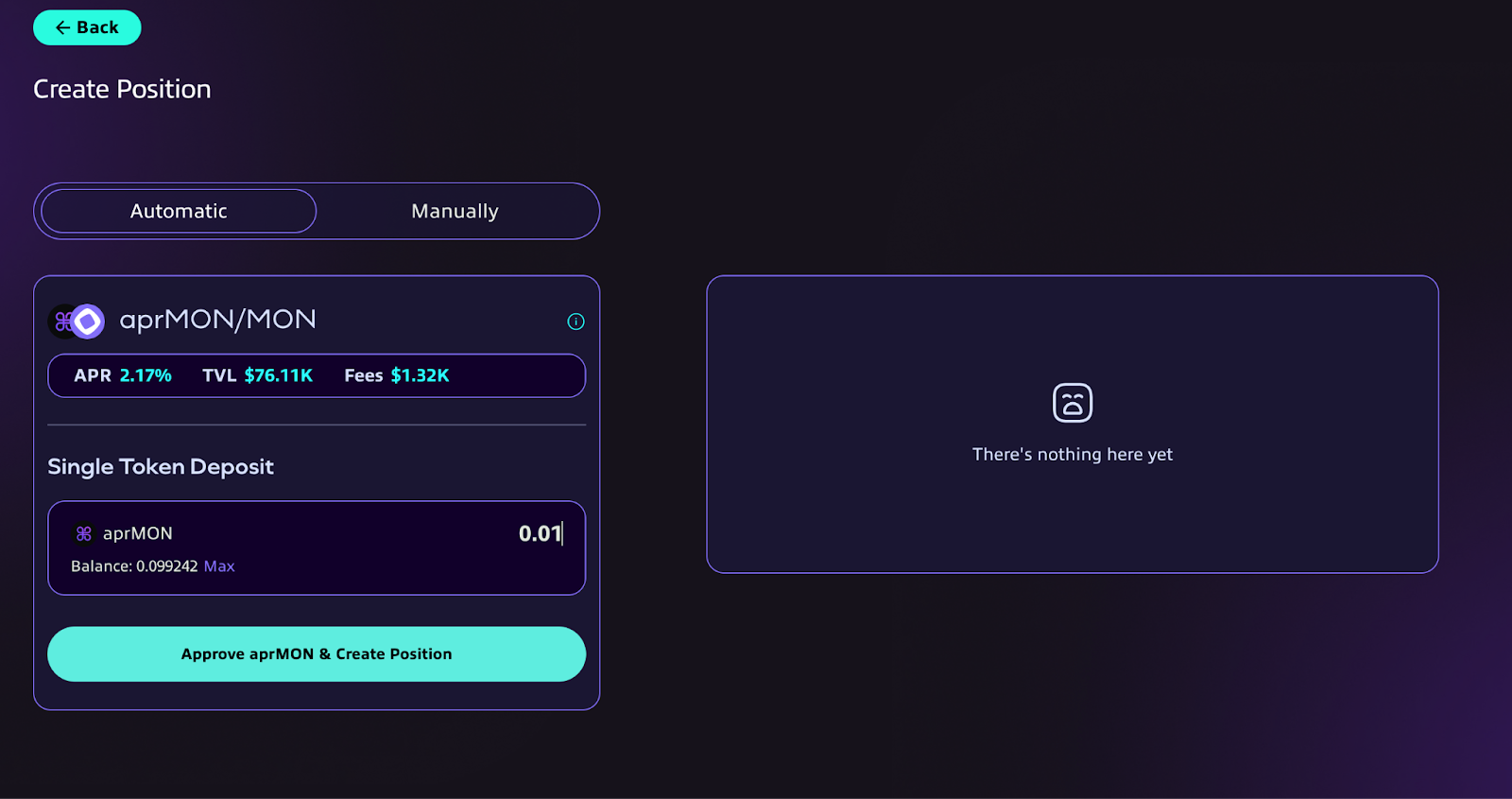
    After you have input your deposit amount, approve and create the position.

    You have now deposited single-sided liquidity, and may view and manage your position on this page.

    Manually:

    Choose your preferred strategy, then enter the amount of liquidity you wish to provide before clicking the "Approve" button.

    Confirm and create your position to proceed.

    Done! You may now use this page to view and manage your position in the vault.

If you need assistance with creating a pool, seeding liquidity, or navigating any part of the process, our team is here to support you.

You can submit a request via the "Request V4 Pool Setup" button under Links & Assets, open a ticket in the Atlantis Discord, or reach out to the team directly.

We’re committed to ensuring a smooth and seamless experience as you launch and grow on Atlantis.

Last updated